

Import & export
Old data comes in cleanly, and your data stays yours.
Move clients, vendors, products, invoices, expenses, and journals from your old system through Excel templates. Tumra checks every row before saving. Whenever you need to, download your data to Excel, one list at a time or all at once in a single ZIP.
On every plan. Imports and exports are run by the Owner or an Admin.
Before and after
Switching apps doesn't mean retyping everything.
Old data sits in spreadsheets and other apps. Retyping hundreds of rows takes days, and one wrong number means the balances never match.
Before
4 manual steps
- Retype clientsAdmin · hundreds of rows typed one by one
- Copy closing balancesFinance · old balances copied over by hand
- Match by handFinance · one wrong number, balances never match
- Export one by oneAdmin · every list downloaded separately
Import & Migration
Old expenses
Ready to save- Account codes taken from the templateReferensi sheet
- Every row checked first46 ready · 0 errors
- Older rows left out2 before 1 Jul
- Data downloadable any timeDownload all (ZIP)
How it works
From an old spreadsheet to books that balance.
01 · Order
Three stages, in the order the data needs.
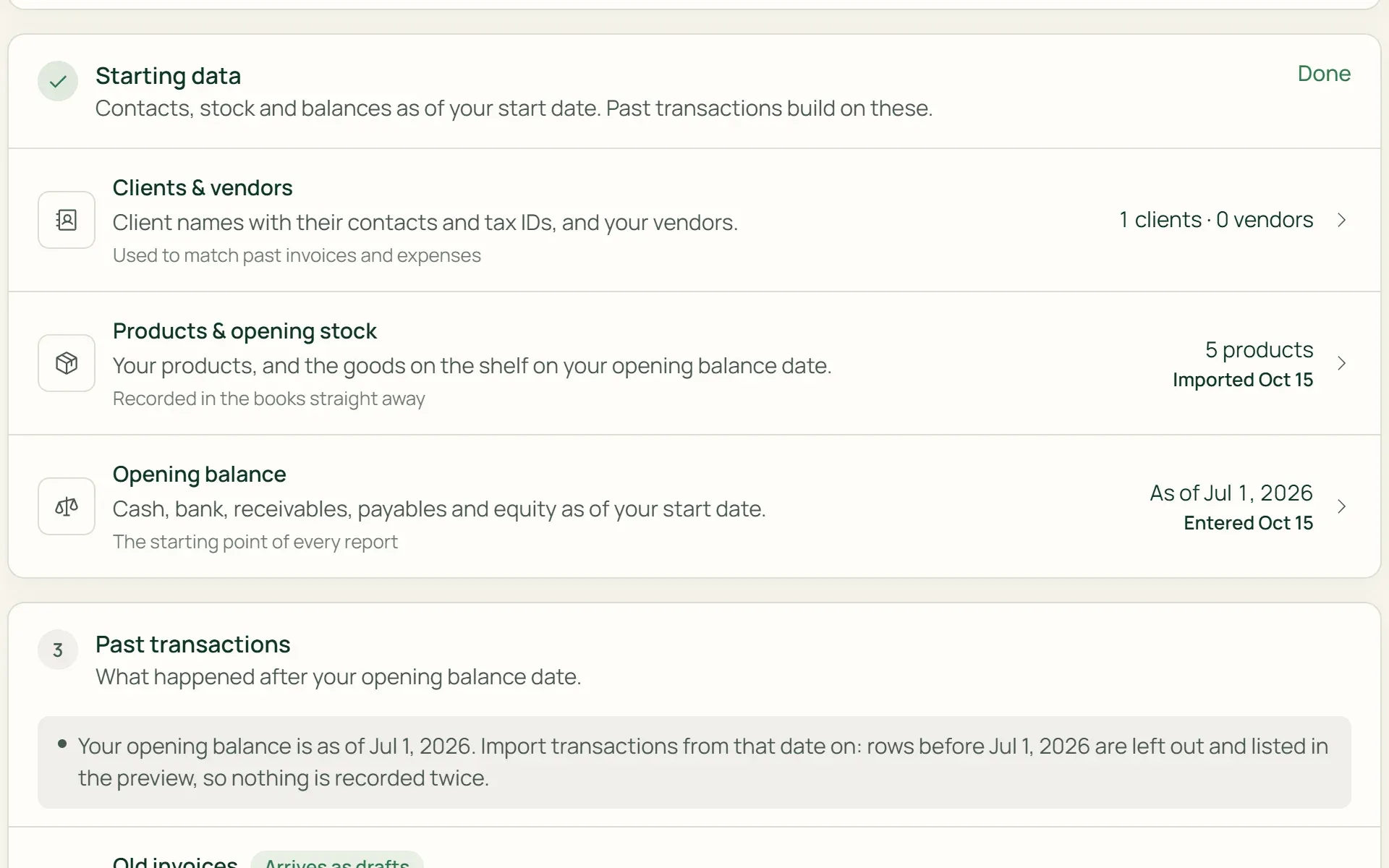
The Import & Migration page splits importing into Setup, Starting data, and Past transactions. Start with your configuration, then clients, vendors, products, and the opening balance as of your start date, and only then the history of invoices, expenses, and journals.
- Setup
- Starting data
- Past transactions
02 · Template
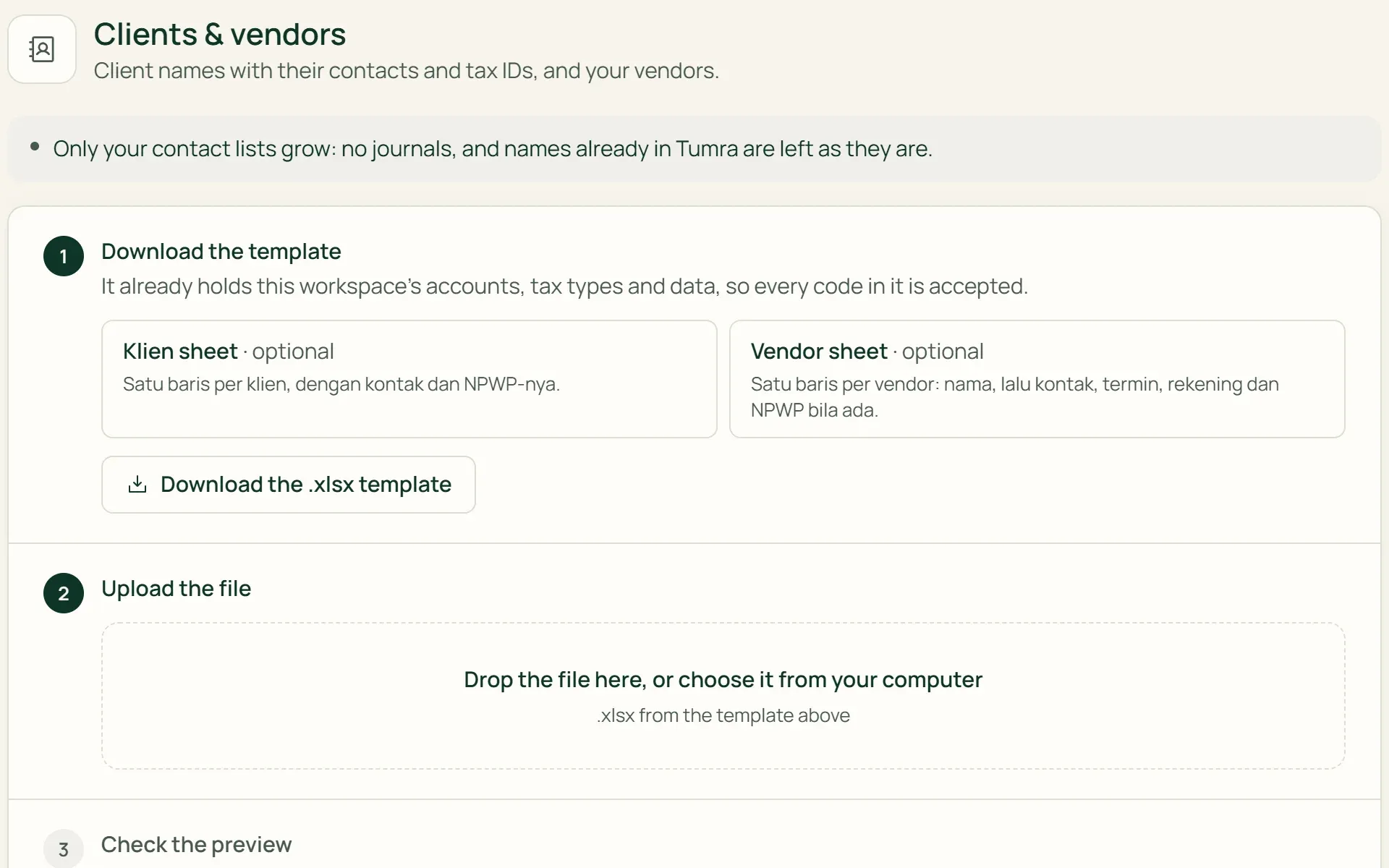
Download a template that already holds your data.
Each kind of data has its own .xlsx template, with a Petunjuk (instructions) sheet and a Referensi (reference) sheet listing your workspace's account codes, tax types, and currencies. Any code you copy from there is sure to be accepted.
- Petunjuk sheet
- Referensi sheet
- Download .xlsx
03 · Preview
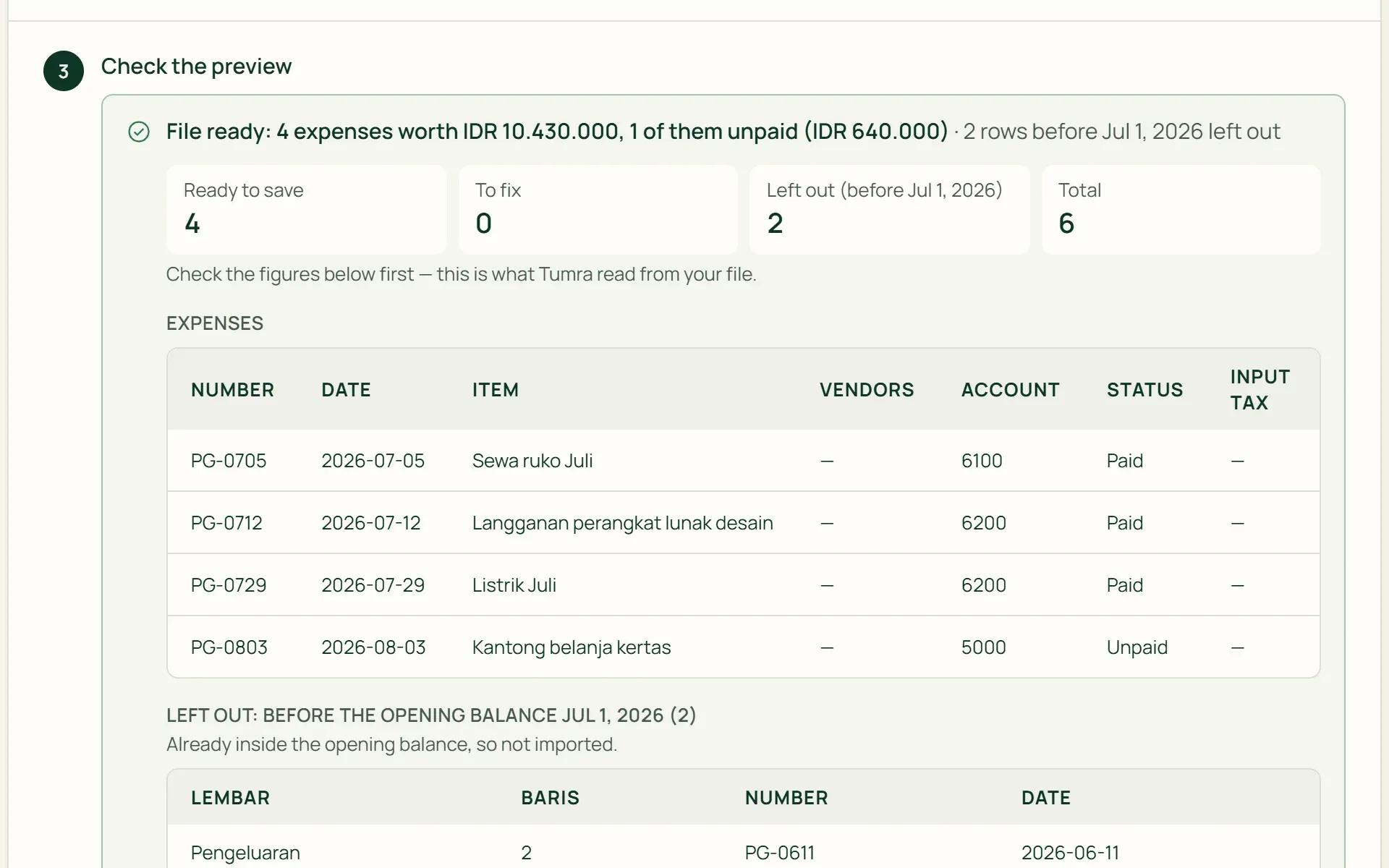
Check first, nothing is saved yet.
Upload the file, and Tumra shows what it read: rows that are ready, errors with their row numbers, and rows left out because they are dated before the opening balance. Fix them in Excel, then upload again.
- Ready to save
- To fix
- Left out
04 · Save
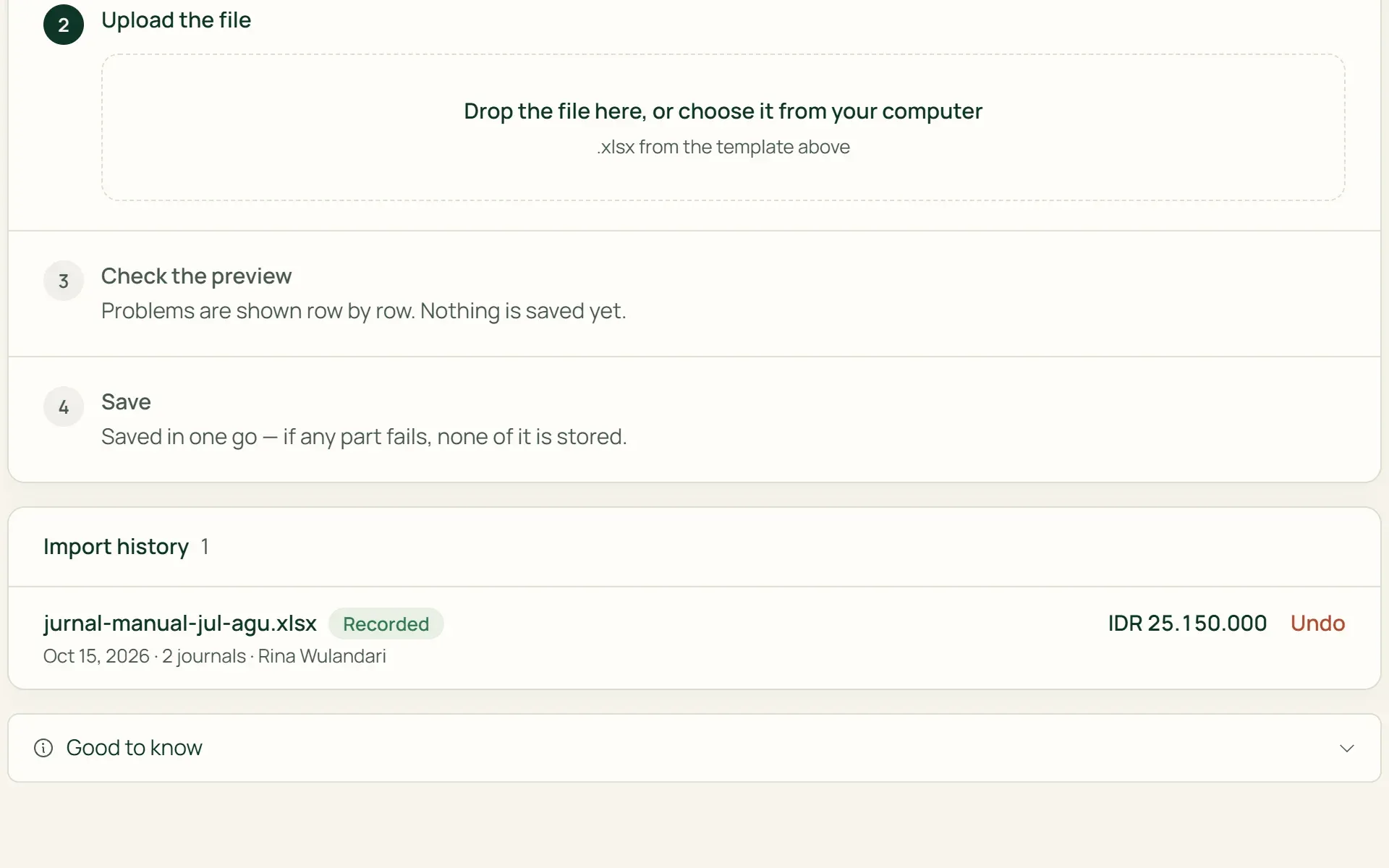
Saved in one go, and it can be undone.
The whole file is saved at once or not at all. Product, expense, and journal imports go into Import history and can be undone with reversing journals on their original dates, without deleting anything.
- All or nothing
- Import history
- Undo import
05 · Export
Download your data at any time.
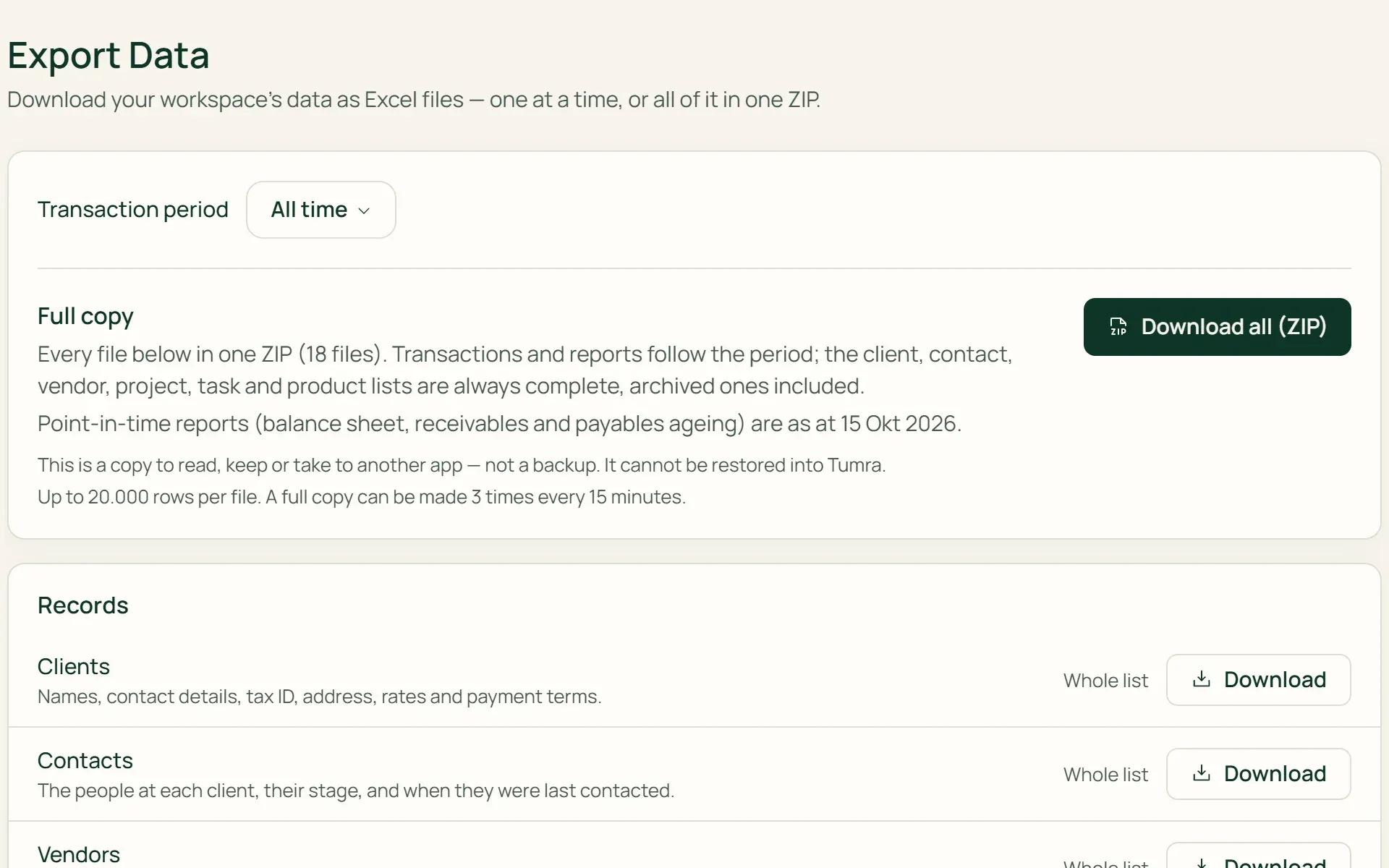
In Export Data, choose a period, then download clients, invoices, journals, reports, and more to Excel one at a time, or press "Download all (ZIP)". Client, vendor, and product lists are always complete, archived ones included.
- Transaction period
- Download all (ZIP)
What you can do
Move in and out without counting twice.
Old invoices come in as drafts
Imported invoices don't create journals or receivables yet, and your reports don't change. Check them first, then issue them as usual from the Invoices page.
The opening balance as the cut-off
Enter cash, bank, receivables, payables, and equity as of your start date. When importing, transactions before that date are left out so nothing is recorded twice.
Configuration in one file
Chart of accounts, account mapping, taxes, currencies, and Kanban columns. The file holds your current settings, so it can also be handed to your bookkeeping consultant.
Upload again without duplicates
Clients and vendors whose names are already in Tumra are left out, and the preview says so. The same file is safe to upload twice.
Export from every list
The Export to Excel button is on the invoice, payment, expense, journal, time log, and report lists. Profit & Loss, Balance Sheet, and Cash Flow can also be printed or saved as PDF.
Reset with safeguards
Choose how far to go: transactions only, project data, the books, or back to an empty workspace. Owner only, with the password and by typing RESET.
For shops
Get your shelves into Tumra from one file.
On the Retail Starter, Retail, and Bisnis plans, the Products & opening stock template brings in the catalog and what is on the shelves together. Inventory on the Balance Sheet rises by Opening Stock × Cost, against Owner's Capital, and Profit & Loss doesn't change.
- Categories & units created for youCategories and units that don't exist yet are created on save. Up to 2,000 products in one file.
- SKUs that already existA row with a SKU that is already registered only adds opening stock to that product, without creating a new one.
- Can be undoneA wrong import can be undone as long as its products haven't been sold, bought, counted, or moved.
Data that comes in is ready to use.
Accounting
Imported opening balances and journals go straight into the general ledger and show in your reports.
Learn more →Products & stock
Products and opening stock from Excel are ready to sell straight away and recorded in the stock history.
Learn more →Financial reports
Profit & Loss, Balance Sheet, and Cash Flow can be exported to Excel or saved as PDF.
Learn more →
Plans
Import and export on every plan.
Import & Migration and Export Data are opened by the Owner or an Admin.
| Feature | FreeRp 0/moRp 0/yr | FreelancerRp 129,000/moRp 1,290,000/yr | AgencyRp 349,000/moRp 3,490,000/yr | StarterRp 179,000/moRp 1,790,000/yr | RetailRp 349,000/moRp 3,490,000/yr | BisnisRp 499,000/moRp 4,990,000/yr |
|---|---|---|---|---|---|---|
| Import clients & vendors | Included | Included | Included | Included | Included | Included |
| Import old invoices | Included | Included | Included | Included | Included | Included |
| Import expenses & journals | Included | Included | Included | Included | Included | Included |
| Import products | Included | Included | Included | Included | Included | Included |
| Opening stock from Excel | Not included | Not included | Not included | Included | Included | Included |
| Full copy (ZIP) | Included | Included | Included | Included | Included | Included |
| Export time logs | Included | Included | Included | Not included | Not included | Included |
| Export stock history | Not included | Not included | Not included | Included | Included | Included |
Retail Free: as on Starter; product imports stay within 100 active products.
FAQ
Common questions
Can I move straight from Jurnal, Accurate, or another app?
There is no direct import from other apps yet. Export your data from the old app to Excel, copy the columns into the Tumra template, then upload it. Tumra only reads .xlsx files with the same sheets and columns as its template, not CSV files or another app’s export files as they are.
What if my import is wrong?
Product, expense, and journal imports can be undone from the import history: the journals are reversed on their original dates, and nothing is deleted. Imported invoices are still drafts, so they can be checked before they are issued. Clients and vendors that have come in are not undone through the import.
Are payments on old invoices imported too?
No. A payment creates a journal straight away, so it is recorded as usual after the invoice is issued. Invoices issued before the opening balance date aren’t imported, because whatever is unpaid on them is already part of the receivables in the opening balance.
How big can import and export files be?
One import file can be up to 10 MB. Clients and vendors up to 5,000 rows per sheet, products up to 2,000 per file. One export file holds up to 20,000 rows, and a full copy can be made 3 times every 15 minutes.
Can a ZIP copy be restored into Tumra?
No. The full copy is for reading, keeping, or moving to another app, not a backup. Its contents can’t be uploaded again to restore a workspace.
Can I still export my data if my subscription stops?
Yes. The workspace isn’t deleted. An unpaid plan drops to a free plan, Free or Retail Free, where the Owner and Admins can still open Export Data and download a copy.
Bring your old data into Tumra.
Try every Tumra feature free for 30 days, no credit card needed.