

Agencies and consultants who bill by the hour tend to share the same month-end routine: open the timesheet, add it up, type one invoice line, and hope no hours were missed or billed twice. In Tumra, hours logged against tasks go straight onto an invoice, and every hour that lands on one is marked so it is never offered again.
This guide follows the flow from logging time to issuing the invoice.
Logging time against a task
Time in Tumra is always logged against a task. There are two ways to do it:
- Timer. Press Start Working at the top of the screen and choose a task. Your tasks with the nearest deadlines appear first, and you can type to find another task, project or client. Use Pause the timer for breaks; paused time is not counted. You can also start from the Start Timer button on a task page.
- Manual session. For work you forgot to time, open the task or project page and press Log a Session. Enter the start and end times, or the duration, and save.
When you stop the timer with Stop and save, you can note what was done, move the task to another column, and check the Billed to the client switch. If a rate is set, Tumra shows roughly what the session is worth.
Every session ends up in Project Management → Time Logs, which you can filter by team member, client, project and billing status. Each person can run only one timer at a time.
Which hours can be billed
Logged time does not automatically become billable. A session is offered for invoicing only when all of these hold:
- the project’s Billing Type is Hourly, not Fixed Price;
- the task is set to Bill from time logs;
- the session itself is marked billable;
- it has never been on an invoice, and the project is not archived.
The layers are deliberate. A fixed-price project is billed through its agreed fee, and a task set to Do not bill time logs is billed through its own fee, if it has one. The hours inside are still recorded as a picture of how long the work took, but they are not charged a second time as hours. Within a task that bills by the hour, you can still mark a single session as unbilled, for example internal rework.
Where the rate comes from
Tumra uses the project’s own hourly rate if it has one. Otherwise it uses the client’s Hourly rate, which is the default for all of that client’s projects. That matches how many agencies price: one rate per client, with exceptions for projects negotiated differently.
If both are empty, the hours can still be imported, but without an amount. Set the client’s rate first so the invoice is right from the start.
Pulling hours onto an invoice
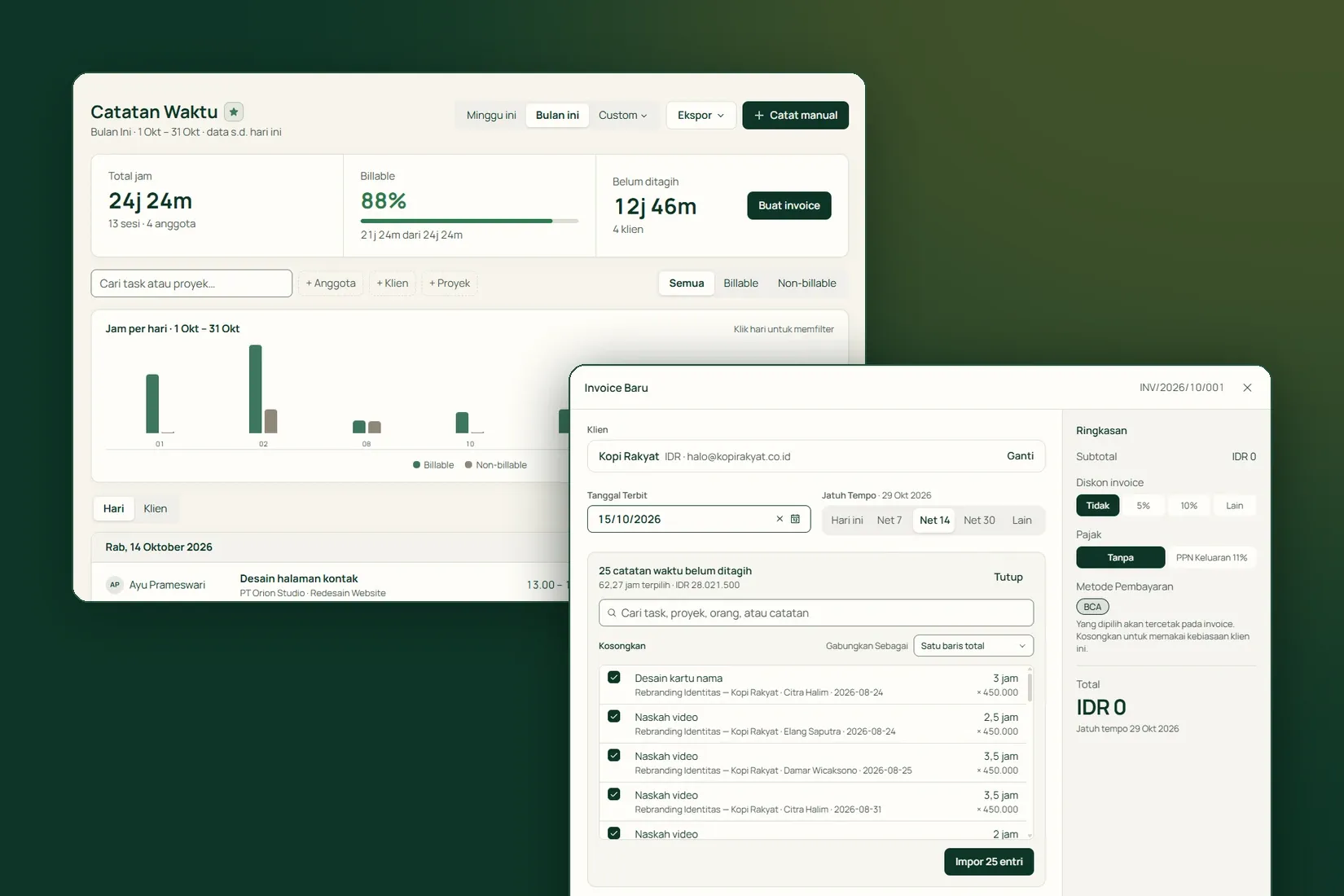
- Go to Finance & Transactions → Invoices, press New Invoice and choose the client.
- In the items section, Tumra shows how many time entries are unbilled. Press Choose Hours.
- Every entry starts ticked. Untick any hours you are not billing yet.
- Choose how to combine them under Group As, then press the import button.
- Check the lines it creates, then press Save Draft or Post Invoice.
There are three ways to group:
- One total line: all hours on a single line. The most common choice.
- Per project: one line for each project.
- Per task: the most detailed, for clients who want the breakdown.
Whichever you choose, hours at different rates always get their own line. Mixing rates on one line produces a figure the client cannot check.
Tumra pulls unbilled billable hours into invoice lines and marks them so they are never billed twice.
After the invoice is created
Imported hours are marked as billed straight away, even while the invoice is still a draft, so they cannot appear on another invoice. If that invoice is later cancelled, the mark is released and the hours can be billed again. No hours are lost because one invoice was cancelled.
Once posted, send the invoice from its own page with Send Email, if your plan includes it and the client has an email address, or use Mark as Sent if you send it yourself.
Habits that help
- Set an hourly rate on every client before the team starts logging time.
- Decide a task’s billing type when you create it, not when you invoice.
- Log time on the day you do the work, while you still remember it.
- Invoice on the same date each month so the billing periods stay consistent.