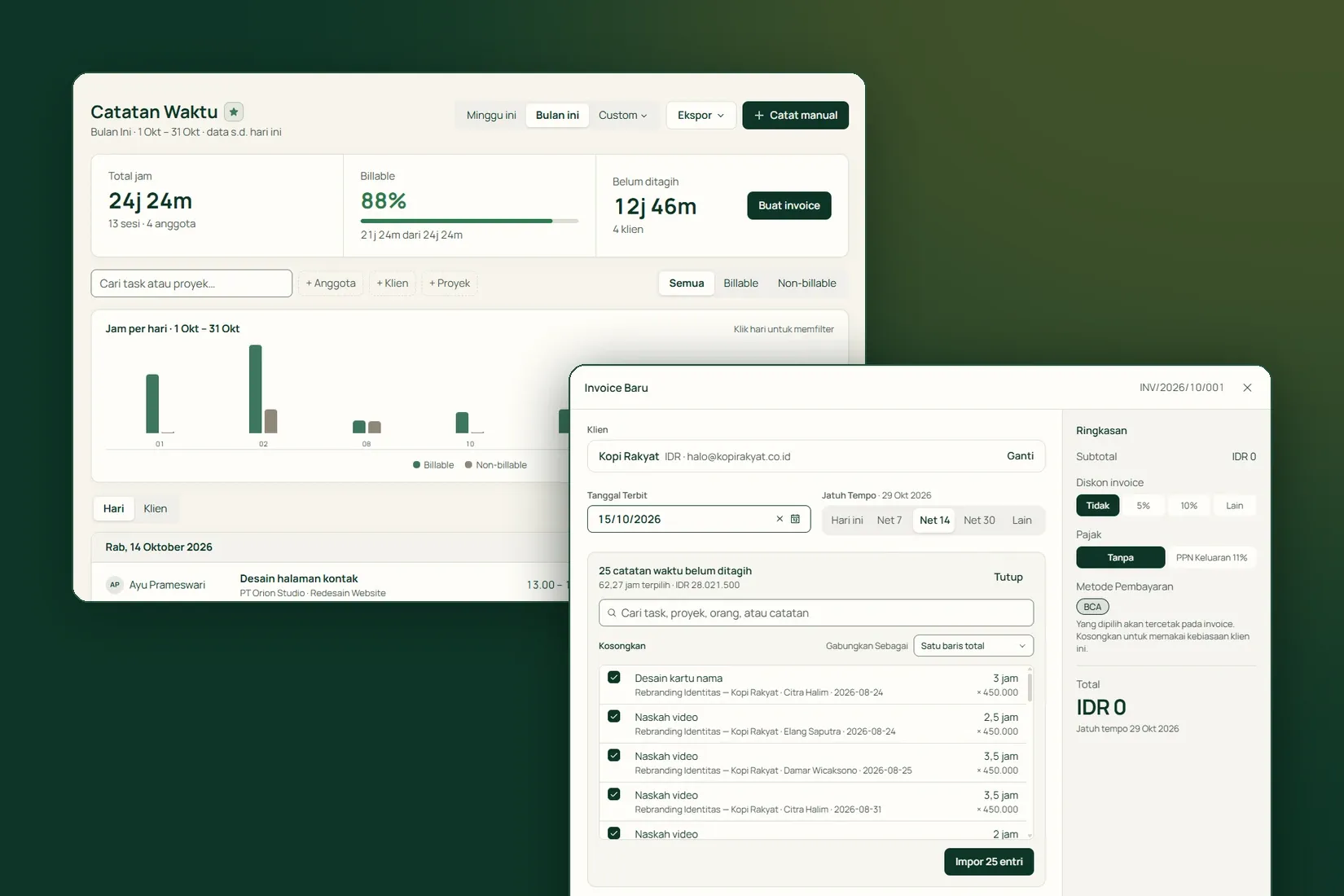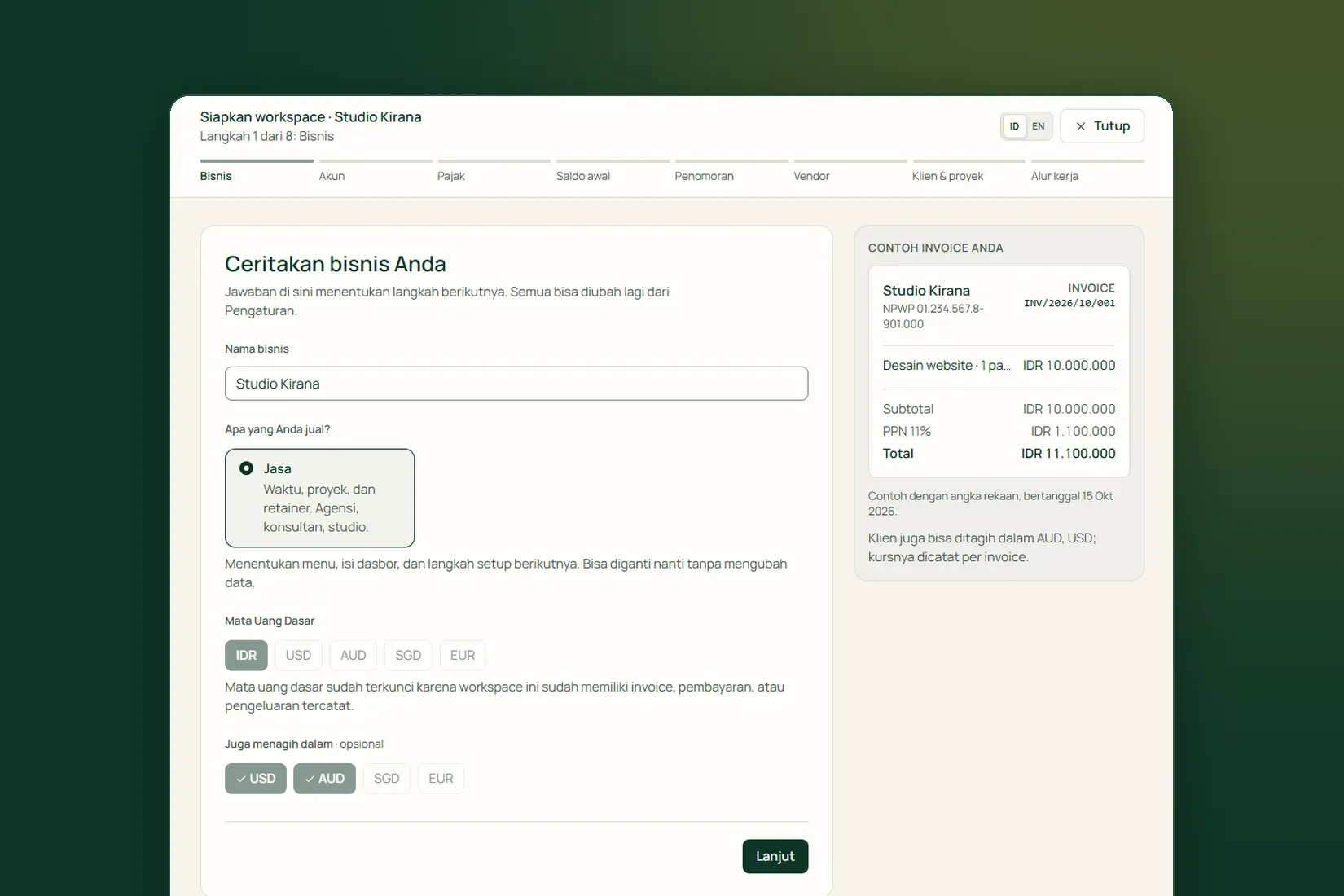


Switching bookkeeping systems rarely goes wrong because data is missing. It usually goes wrong the other way: the same money gets counted twice, once in the opening balance and again through imported transactions. Tumra’s Settings → Import & Migration page is built to stop that.
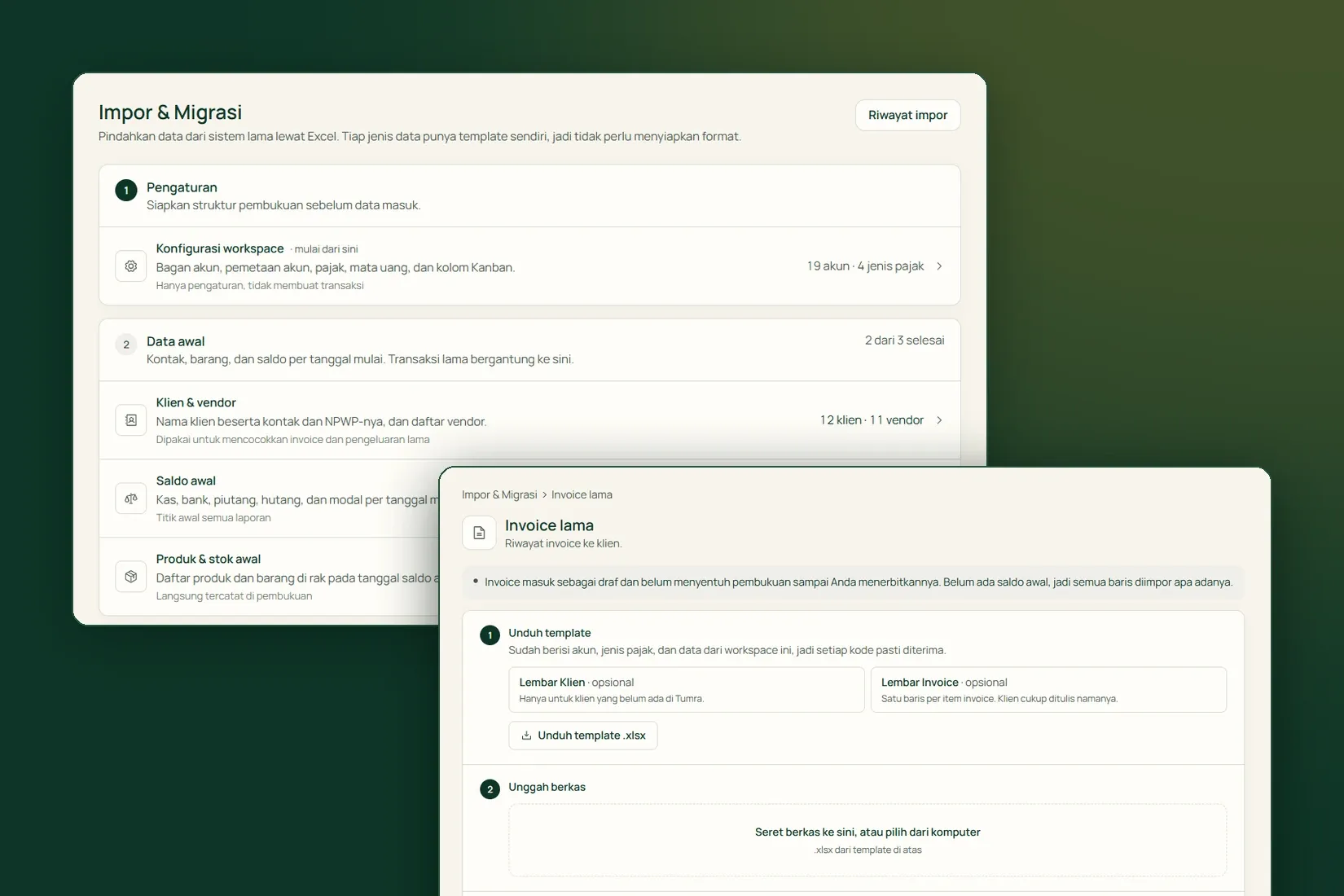
Only Owners and Admins can open it. Every import uses an Excel file (.xlsx) from a Tumra template. There is no direct connector to other apps, so you export your old data to a spreadsheet first and copy it into the template.
The order: setup, starting data, then past transactions
The page is split into three sections in the order a move happens, and each one builds on the one before.
- Setup: Workspace setup, meaning your chart of accounts, account mapping, currencies, Kanban columns and tax types. The other templates are generated from this, so start here.
- Starting data: where the business stood on the first day of its books in Tumra, meaning Clients & vendors, Products & opening stock and the Opening balance.
- Past transactions: Old invoices, Old expenses and Manual journals dated from the opening balance date onward.
Because each template is generated from your own workspace, its Reference sheet already lists the account codes, tax types and other values your workspace accepts. You never have to guess which code will go through.
What each import does to your books
Not every import touches the ledger. Here is the difference:
- Clients & vendors: contact lists only, no journals. Names already in Tumra are left as they are, so the same file is safe to upload twice.
- Products & opening stock: products plus what was on the shelf as of the opening balance date. The value is posted straight to inventory (1400) against owner’s equity (3000). Opening stock is capital, not revenue.
- Opening balance: cash and bank, receivables and payables as of your start date. No file here: you type the figures on the page, and equity is worked out for you.
- Old invoices: arrive as drafts. No journal and no receivable exist until you issue them.
- Old expenses and Manual journals: posted immediately, because neither has a draft state.
The opening balance date is the cut-off
Your opening balance already sums up everything before its date. So invoices, expenses and journals dated before it are not imported. The preview lists those rows as left out, so you can check that is what you meant, and they do not need fixing first.
The same goes for stock. Count the shelf as of the opening balance date, not today. Today’s stock already includes purchases made since the start date, and if those purchases are also imported as expenses, the same goods are counted twice. The preview tells you how many opening stock rows carry a different date.
Three things people miss
- Don’t import invoices that are already part of your opening receivables.
- Write dates as YYYY-MM-DD. A date like 03/04/2026 is read as 3 April, day first.
- The opening balance cannot be dated later than transactions already recorded.
The same four steps for every import
- Download the template from the import’s page.
- Fill it in, upload it, and press Check the file.
- Review the preview. Errors are shown by sheet, row and column, and nothing has been saved yet.
- Press Save. The whole file goes in at once, or none of it does.
For products, categories and units that don’t exist yet are created for you, and the preview lists them so typos show up before you save. SKUs and barcodes must be unique: one already used by another product is rejected in the preview, never quietly changed.
What does not come across
Some data moves another way:
- Projects, tasks and time logs. Create the projects that are still running directly in Tumra.
- Payments on old invoices. Once an old invoice is issued, record its payment with Record Payment like any other invoice.
- Product variants, such as sizes or colours. Create them from the product page.
- Fixed assets. Record them under Finance & Transactions → Fixed Assets with Post no journal (an asset you already had), because their value is already in the opening balance.
If something goes wrong
Expense, journal and product imports keep an Import history with an undo button, and a reason is required. Nothing is deleted: every journal the import posted is reversed on its original date.
- Undone expenses are marked VOID. The undo is refused if any of them already has a payment, so void the payment first.
- Imported products are deactivated and their stock reversed. The undo is refused once a product has been sold, bought or adjusted.
- Every undo is refused if a reversed date falls in a locked period.
A wrong opening balance is replaced with Replace the opening balance: the old journal is reversed and you enter a new one. Old invoices still in draft have not touched the books yet, so they are safe to delete.
Import & Migration brings contacts, products, opening balances and past transactions across from Excel templates, with a preview before anything is saved. Try it free for 30 days →