

Every new Tumra workspace starts in Workspace Setup, a step-by-step guide that opens automatically for Owners and Admins until setup is done. The goal is simple: before your first invoice goes out, your books already know their currency, which accounts to use, whether you charge tax, and how documents are numbered.
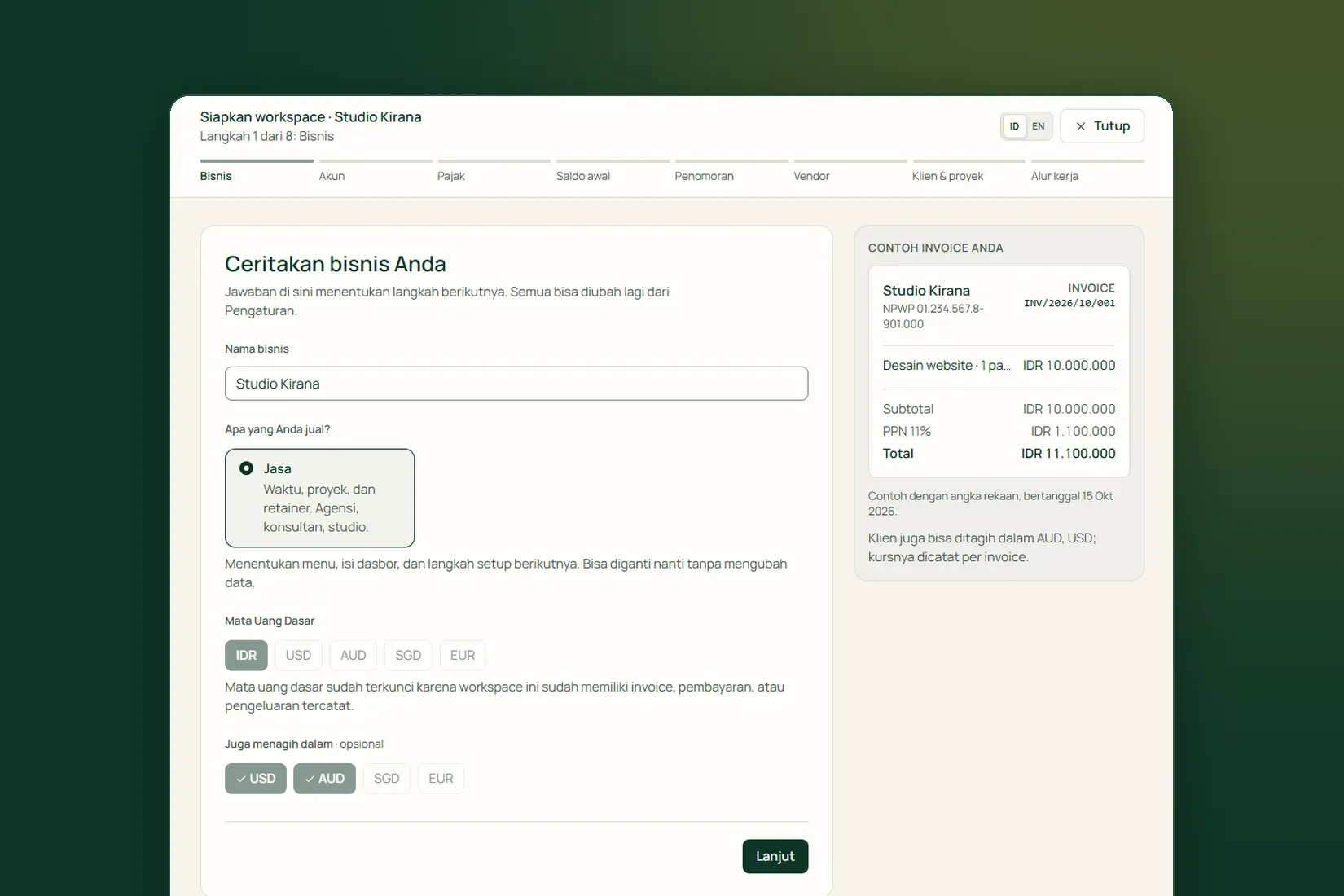
Only one step is required: your core accounts. Everything else can be accepted as it comes and changed later. Beside each step, Tumra shows a preview, such as a sample invoice or your opening balance sheet, so you can see what each answer does before moving on. Each step is saved as soon as you press Next.
1. Business: name, type and currency
The first step asks three things about your business. Business name is the name printed on your invoices. What do you sell? has three answers: Services, Goods or Both. Your answer decides the menu, the dashboard and the setup steps that follow, and you can change it later without touching your data.
Then choose your Base Currency, the currency of your books and of every report. If you also bill clients in other currencies, pick them under Also bill in. The base currency is fixed once the workspace holds an invoice, a payment or an expense, so get it right from the start.
2. Your core accounts
Every invoice and expense is recorded to six core accounts: cash and bank, receivables, payables, output tax, revenue and expenses. Tumra fills in their names for you. Rename them only if your team uses different terms.
This is the one required step. Without a chart of accounts and account mapping, invoices and expenses cannot be created, and Finish Setup stays unavailable. Other accounts, such as rent or salaries, can be added later under Settings → Chart of Accounts, and their codes are handled for you.
3. Tax
The question is Does your business charge VAT? There are three answers.
- Yes, VAT-registered: enter your tax ID (NPWP), which is printed on invoices. Tumra adds an 11% VAT tax type, and you can change the rate under Settings → Tax.
- No: invoices are issued without VAT.
- Not sure yet: start without VAT and turn it on under Settings → Tax whenever you are ready.
Service businesses also see Clients usually withhold PPh 23. Tick it, and when you later record a payment, the part a client withheld is booked as prepaid tax rather than as an underpayment. This step also asks which month your fiscal year starts.
About tax
This is general information about how Tumra records tax, not tax advice. Tumra records tax as you set it up. To work out what you owe, use these records with your tax adviser.
4. Opening balance
A business that was already trading before Tumra has money in the bank, invoices clients have not paid yet, and perhaps vendor bills still open. Choose Already trading, then pick Books Start From: the start of this month, the start of the fiscal year, today, or a date of your own. Enter three figures as of that date:
- cash and bank, meaning all cash plus every business bank account;
- receivables, meaning what clients still owe you;
- payables, meaning vendor bills you have not paid.
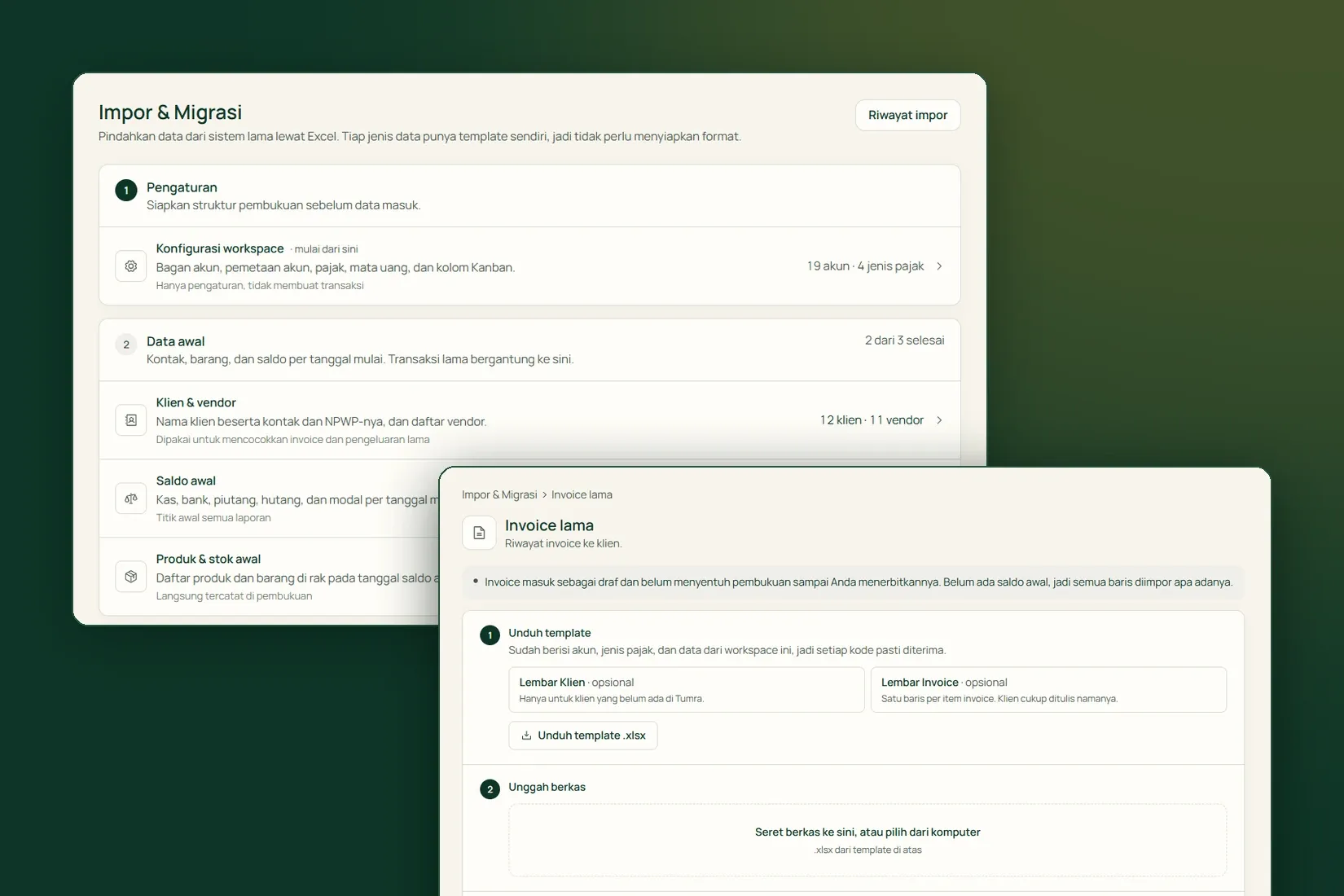
You do not have to guess owner’s equity. Tumra works it out as cash plus receivables minus payables and posts everything as a single journal. Transactions before the start date do not need to be entered one by one, because these totals already cover them. Stock is not entered here; it comes in through the product import.
If you are starting from scratch, choose No, starting from zero. An opening balance that turns out wrong is not edited: press Cancel & Re-enter, Tumra writes a reversing journal, and you enter it again. Both the original and the reversal stay visible in the General Ledger.
5. Document numbering
Set this before the first document is issued. You answer two questions: Number format (Slashes, Dashes or No separators) and Restart from 1 (Every month, Every year or Never). The Prefix is set per document type: invoices, expenses and payments, plus delivery notes and goods receipts for businesses that sell goods.
Moving from another system? Enter the next number so your sequence continues. If you change it after the first document is issued, numbers already used stay as they are. Custom patterns and extra series can be set up later under Settings → Document Numbering.
6. Vendors, clients and workflow
The last steps are optional and can be skipped:
- Vendors: who you usually pay, such as subscriptions or service providers. A name is enough.
- Client & project: your first client and project, so the team can start logging tasks and hours straight away. It appears only for service businesses (or both), and only if your plan includes projects.
- Workflow: the Kanban columns every task moves through. Rename them, recolour them or add your own. The start and done columns cannot be removed.
Press Finish Setup. The final page sums up your choices and suggests what to do next, such as inviting your team or creating your first invoice. You can reopen setup at any time under Settings → Workspace Setup. It shows your current configuration, not your old answers.
Workspace Setup takes you through currency, accounts, tax, opening balances and numbering in one flow, with a live preview at every step. Try it free for 30 days →