

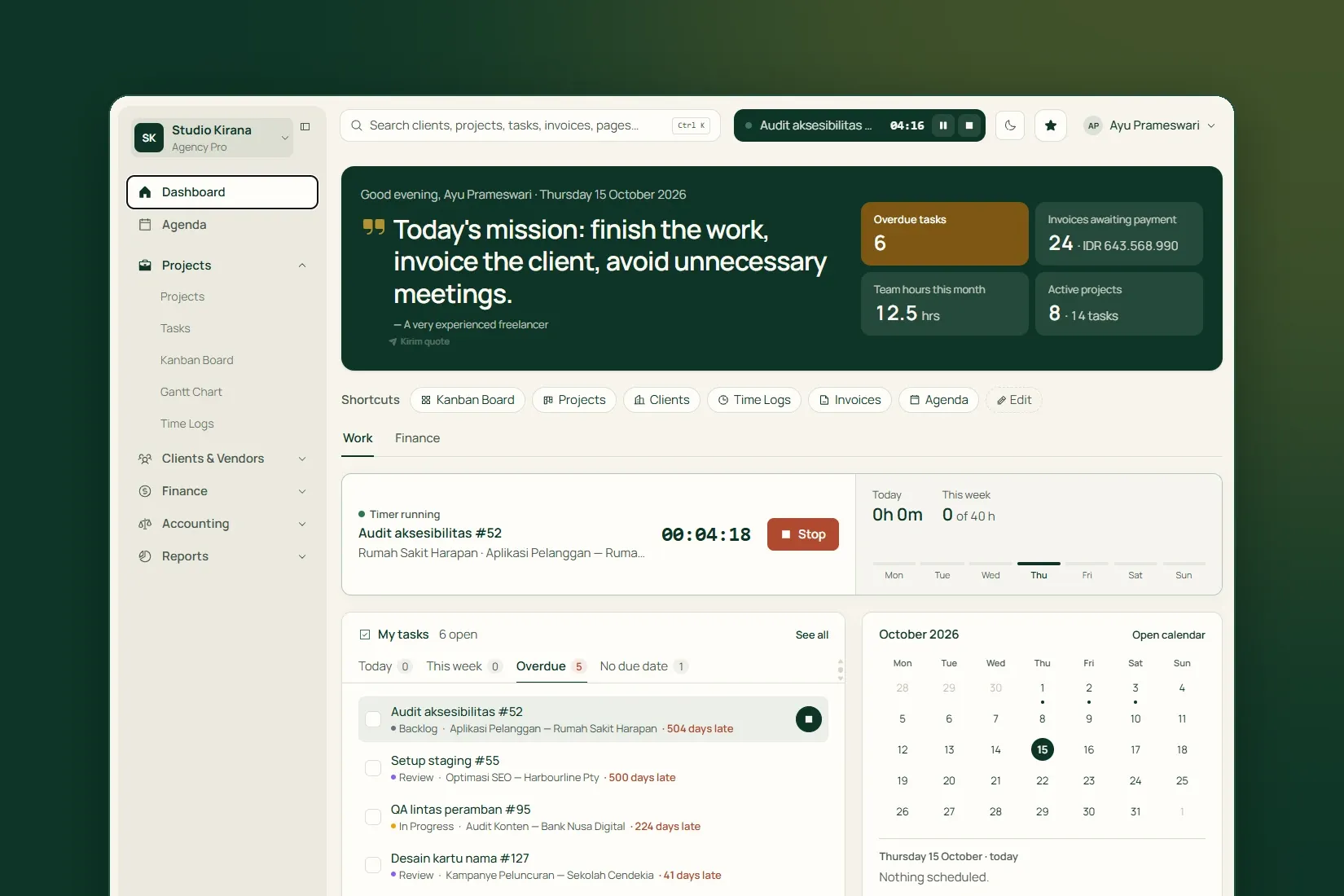
A project that runs over rarely looks like it is running over at the start. Scope creeps up quietly, new tasks get added without anyone comparing them with what was agreed, and the hours spent only become clear at invoice time. Tumra organises work in three layers and compares estimates with reality so this shows up earlier.
Three layers: client, project, task
The order is always client, then project, then task. Every project belongs to one client and every task to one project. All of it lives under Project Management.
- Clients hold the billing details: billing email, currency, tax ID, payment terms, and the Hourly rate that is the default for all of that client’s projects.
- Projects hold the start date, Due Date, Billing Type, and the hours agreed with the client.
- Tasks are single pieces of work with an assignee, a priority, an hour estimate, a deadline and a column on the Kanban board. Time is always logged against a task.
For bigger projects, milestones group several tasks under their own deadline, status and fee. Add them from Milestones & Collaboration on the project page.
Decide how you will bill up front
A project’s Billing Type decides what ends up on the invoice:
- Hourly: billed from the hours logged on its tasks.
- Fixed Price: billed from the project fee. Hours are still logged, but not billed.
Tasks have a similar choice: Bill from time logs, or Do not bill time logs with a task fee if the work is still paid for. The two can’t be combined, on purpose, so the same work is never billed twice, once as hours and once as a price. Project, milestone and task fees can be billed in stages with Bill an agreed fee on the invoice, and what is left is tracked for you.
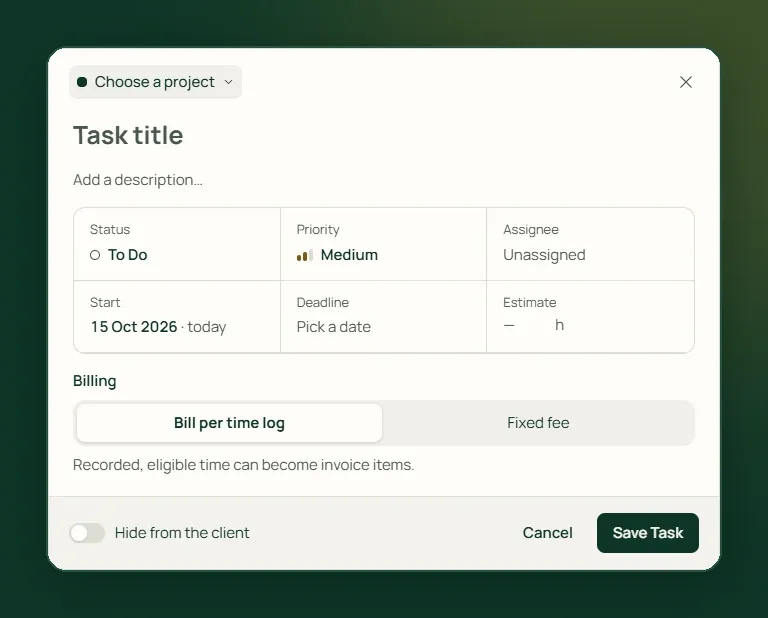
Only people with finance access can set rates and fees. Staff can still create and edit tasks without deciding what they cost.
Three numbers for keeping an eye on hours
The project page shows three numbers side by side:
- Agreed Estimate: the hours you agreed with the client, entered in Estimated Hours (optional) when you create the project.
- Task Estimate: the sum of every task’s estimate in that project, worked out for you.
- Time Spent: the hours actually logged.
Comparing them gives you two warnings at two different moments. The first appears when task estimates exceed the agreed estimate: Tumra tells you the scope is already larger than what was sold. That arrives before anyone has worked an hour, so there is still time to talk to the client or trim the work.
The second appears when time spent passes the agreed estimate. By then the hours are gone, which is why the first warning is the more useful one. Tumra also tells you how many tasks have no estimate yet, because without them the task total looks smaller than it really is. On the client page, hours are compared with the estimate for each of their projects too.
To keep the numbers meaningful
- Fill in Estimate (Hours) on every task when you create it, even a rough one.
- Set the project’s hour estimate to what you actually agreed with the client, not an internal target.
- Log time with the timer or a manual session on the day the work happens.
Projects & tasks
Organise projects, milestones and tasks as a list, a Kanban board or a Gantt chart, and see the hours spent against the estimate.
The Kanban board and your workflow
Tasks move across the Kanban Board: drag a card between columns to change its status. Columns are set under Settings → Kanban Columns. The defaults are Backlog, To Do, In Progress, Review and Done, and there must always be exactly one start column and one done column. The done column marks a task as finished and ready to bill, and it drives project and milestone progress.
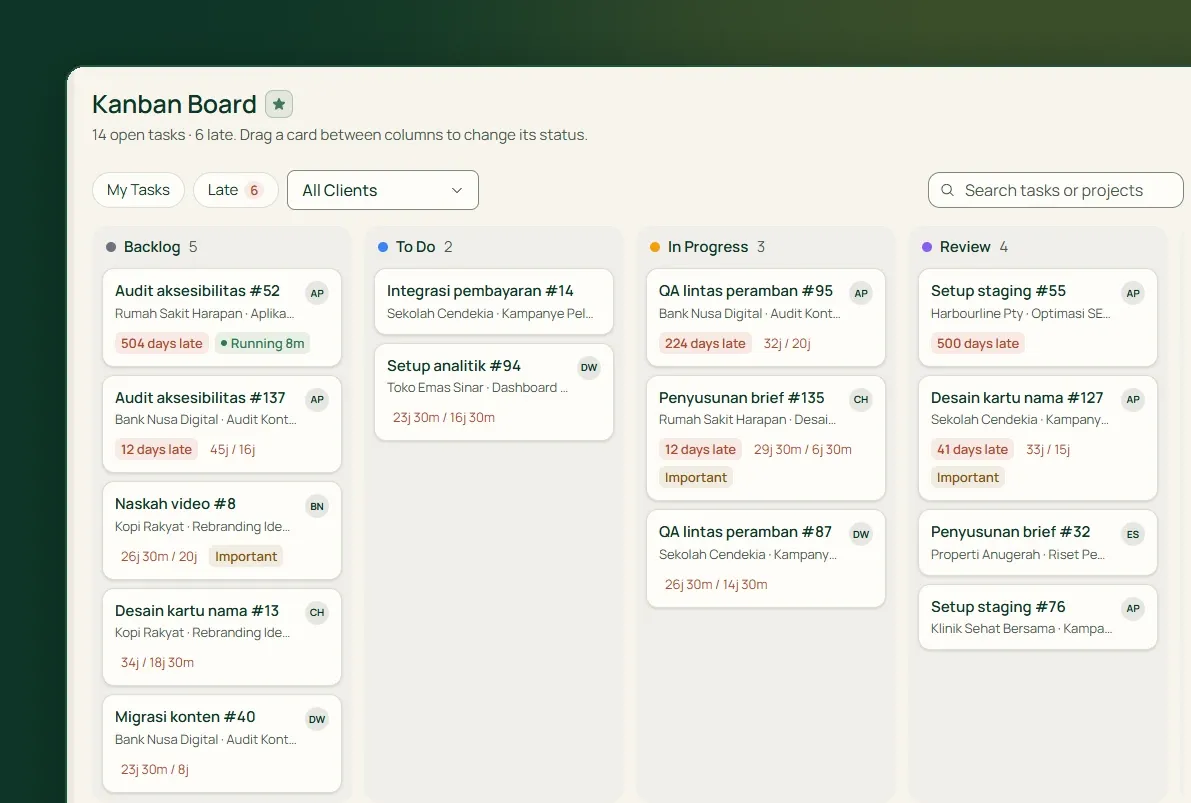
Tasks in the done column stay on the board for 30 days, then remain searchable in the task list. Tick My Tasks to see only what is assigned to you.
Who sees what
Clients and projects can be limited to specific staff through the Team Access tab on the client page and the collaboration settings under Milestones & Collaboration. Staff need access in both places. Owners, Admins, Project Managers and Finance always see everything.
That way, a freelancer or team member working for one client never sees another client’s projects, and the money stays with the people who are meant to handle it.
Tumra connects clients, projects, tasks and logged hours, and compares your estimates with the time actually spent. Try it free for 30 days →