

Last month’s report is only useful if its figures stop changing once you have used them, whether for your tax adviser, your bank or your own decisions. A monthly close is the habit of making sure those figures are complete and correct, and then locking them.
The order below follows a sensible flow: finish recording, check against outside records, tidy up month-end adjustments, then lock. Every step can be done in Tumra.
1. Finish recording the month
- Draft invoices. A draft has not reached the books. Post the ones you have actually sent and delete the ones that fell through.
- Recurring schedules. Open Finance & Transactions → Recurring Schedules and check Waiting for confirmation. Recurring costs such as rent or subscriptions are only recorded once you confirm them, and recurring invoices are created as drafts.
- Expenses and their receipts. Record every expense for the month, including unpaid ones as amounts owed to vendors. The expense form lets you attach a receipt or the vendor’s invoice, so the evidence stays with the transaction.
- Depreciation. If you hold fixed assets, the Worth checking panel under Finance & Transactions → Fixed Assets flags depreciation not yet posted. Press Post depreciation. Any missed months are posted together, each in its own month.
2. Match against the bank
Most checks compare your books with themselves. A bank reconciliation compares them with a document from outside: the bank statement. That is where a payment recorded twice, a forgotten bank fee or a transfer that never arrived finally shows up.
- Open Finance & Transactions → Bank Reconciliation and pick the account.
- Enter the statement date and closing balance.
- Tick every transaction that also appears on the statement.
- If the Difference is not zero, record what is missing where it belongs: bank fees as expenses, client money as an invoice payment. Never force the difference to zero by ticking something else.
- Press Complete reconciliation. It only works once the difference is zero.
A busy month does not have to be done in one sitting. Save Draft keeps your ticks even while the difference is not yet zero.
3. Review receivables and overdue invoices
Open Financial Reports → Receivables Ageing. It groups unpaid invoices by how long they are overdue, client by client. Two things usually need attention:
- Money that arrived but was never recorded. Record it with Record Payment, or use Bulk settlement under Payments Received when several invoices were paid in full.
- Overdue invoices. Tumra also flags overdue invoices that were never sent, which is often why an invoice is still unpaid.
If a client withheld income tax when paying, make sure the withholding slip number is recorded. Payments without one are flagged Withholding slip missing under Payments Received.
4. Exchange differences on foreign-currency clients
If you bill in foreign currencies, there are two kinds of exchange difference:
- When the client pays. Enter the amount that actually reached your account. The receivable is cleared at the invoice rate, and the difference, bank charges included, goes to the exchange gain (4100) or loss (6100) account.
- At month end. Unpaid foreign-currency invoices are still carried at the rate on their issue date. FX Revaluation, under Finance & Transactions, revalues them at the closing rate you enter and automatically reverses that adjustment the next day. Your balance sheet is right at month end, and the real difference is still recorded when the money arrives.
Note where your closing rate came from in the revaluation’s notes, so the figure can be traced later.
5. Close the books
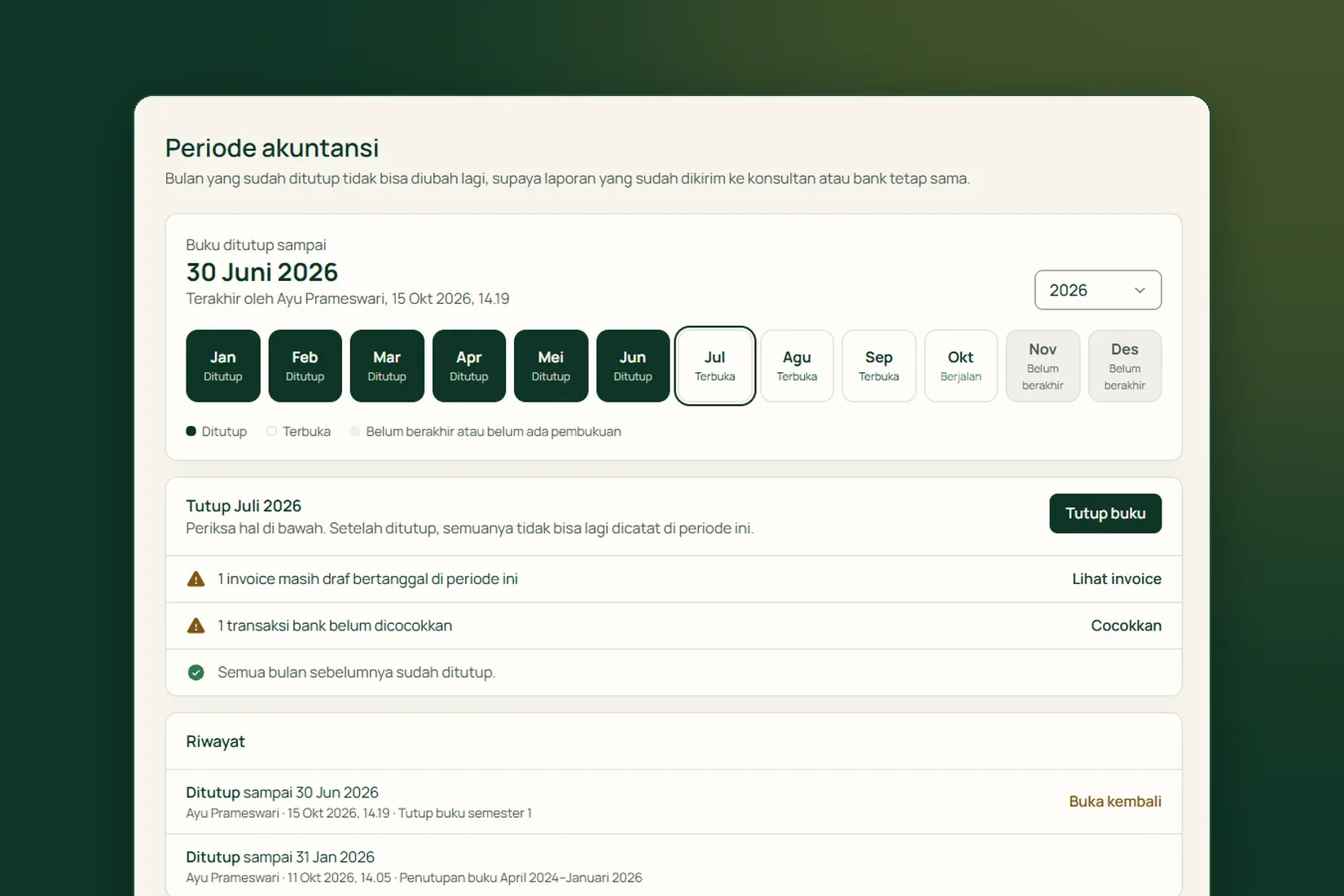
Open Settings → Accounting Periods and pick the month to close. Tumra runs its checks first, and the results fall into two groups:
- Must be fixed, shown in red: invoices, payments or expenses without a journal, unbalanced journals, and incomplete account mapping. While any of these remain, the month cannot be closed, because its figures would be wrong.
- Worth a look: unposted depreciation, draft invoices dated in the period, and bank transactions not yet matched. You can still close with Close anyway, but afterwards none of these can be recorded in that period.
Once you press Close the books, no journal can enter that month. The rule is enforced in the database, so no button, import or other route can get past it. A month can only be closed once it has ended, and closing runs in order: earlier months still open are closed with it.
If a correction is needed
- An Owner or Admin can press Reopen, with a reason that is kept in the history.
- Only the most recent close can be reopened, so the closed stretch stays unbroken.
- Close the month again once the correction is done. Reports already sent for that period may need to be sent again.
Accounting Periods runs its checks before you close, then locks the month at the database level. Try it free for 30 days →